
A support email lands in a sales manager's Gmail inbox, gets forwarded to a personal address, then gets copied into a shared mailbox by another employee. The customer receives two replies, neither teammate can see the complete history, and the manager's departure leaves an undocumented rule behind. The problem isn't that Google Workspace email forwarding failed. The problem is that the business chose a delivery mechanism before deciding who should own the conversation.
Google Workspace supports personal forwarding, administrator-controlled routing, and mailbox delegation. Each handles ownership, reply identity, history, offboarding, and auditability differently. A reliable setup starts with the workflow, then uses the simplest configuration that preserves control.
Table of Contents
- Why Email Forwarding Is an Operational Decision
- Setting Up User-Level Forwarding in Gmail
- Configuring Admin-Level Routing in the Admin Console
- Forwarding vs Routing vs Delegation
- Security and Compliance Risks of External Forwarding
- Troubleshooting the Most Common Forwarding Problems
- Forwarding Into a Shared Support Workspace
Why Email Forwarding Is an Operational Decision
Forwarding looks like a small Gmail setting, but it determines where customer messages appear, who can answer them, and which copy becomes the business record. A user forwarding mail to a colleague creates a different operating model from an administrator routing messages into a shared support destination. Delegating access to a mailbox creates a third model, because the second user works inside the original mailbox rather than receiving a separate copy.
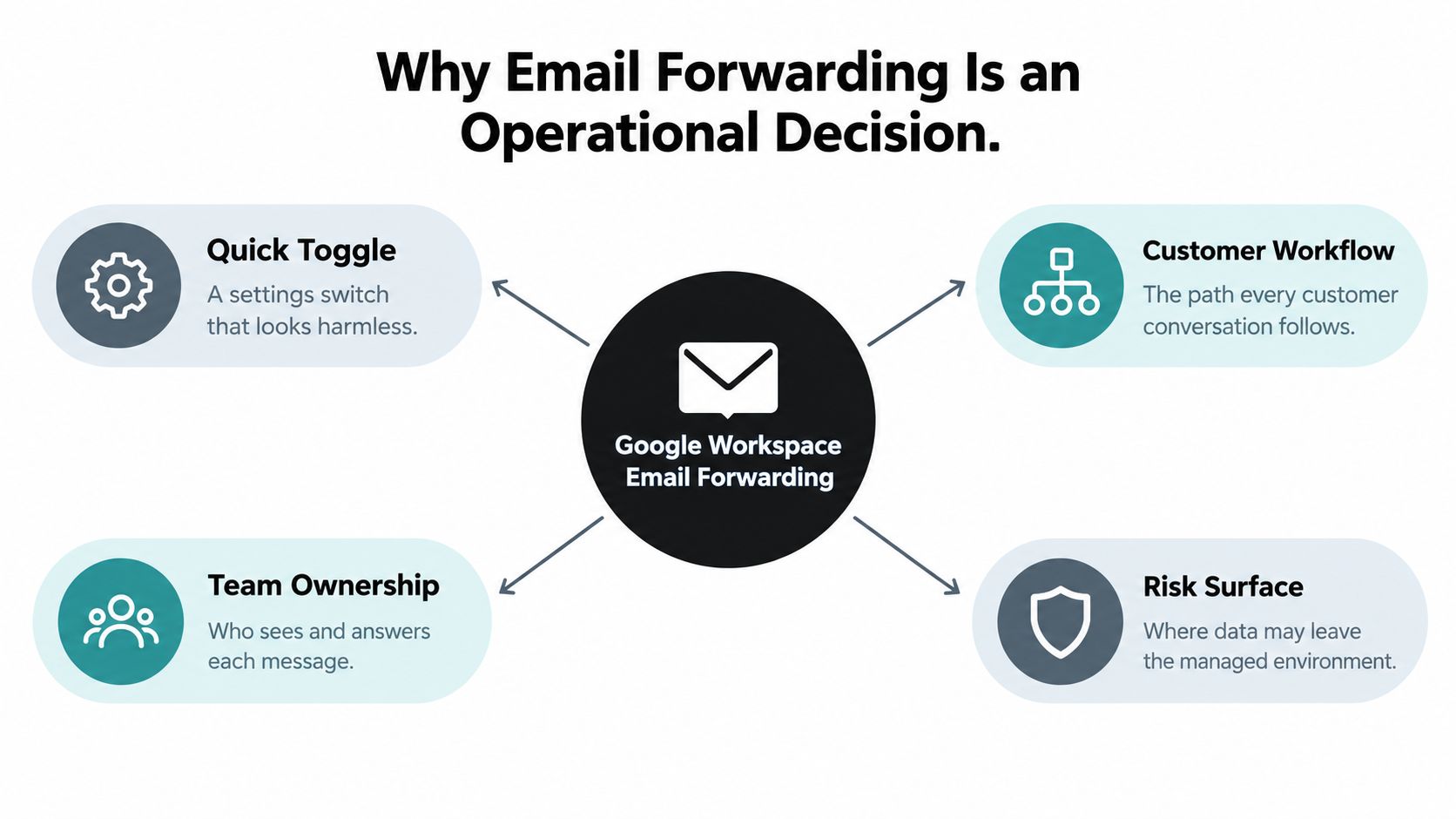
The familiar click path can hide operational consequences:
- Personal forwarding is useful for one employee's overflow or a narrowly defined filter. It's quick, but the destination may not share the original mailbox history or reply identity.
- Admin routing applies a mail-flow rule centrally. It fits departmental aliases, migrations, and support intake patterns that should work consistently across users.
- Delegation gives another person access to the mailbox itself. That usually preserves more context, but it requires clear permissions, ownership, and offboarding procedures.
Google distinguishes forwarding from delegation and organization-wide routing in its Workspace email routing and delivery documentation. Forwarding generally delivers the message to the original recipient before sending it onward, so the forwarded copy usually supplements the original inbox rather than replacing it.
Operational rule: If several people must answer the same customer queue, individual forwarding shouldn't be the default design.
The decision should be judged against five questions. Who owns the reply? Where does the complete history remain? Can another agent see the conversation without asking for a copy? What happens when an employee leaves? Can an administrator review and change the flow? Teams that answer those questions first can use SignalZen's integrations or another controlled support workspace without building a fragile chain of personal rules.
Setting Up User-Level Forwarding in Gmail
User-level forwarding is appropriate when one person needs a controlled copy of selected mail. A sales representative, for example, might send customer inquiries to a shared support destination while keeping personal correspondence and internal conversations in the original mailbox. The safest configuration forwards only messages that match a deliberate filter.
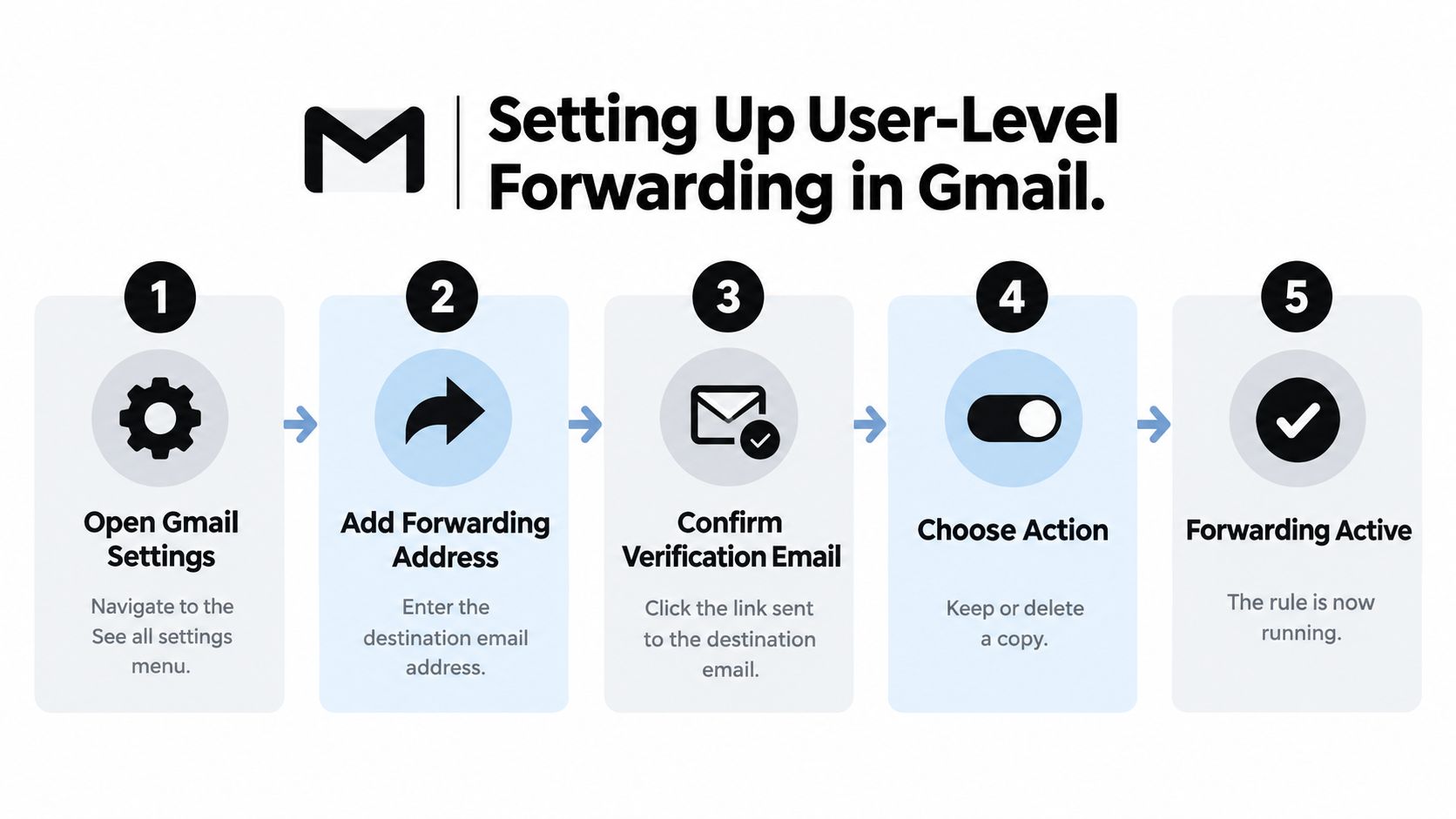
Gmail's setup path is straightforward:
- Open Gmail and select Settings, then See all settings.
- Open Forwarding and POP/IMAP and choose Add a forwarding address.
- Enter the destination address. Gmail sends a verification message to that address.
- Have the recipient confirm the verification link before expecting forwarding to work.
- Create a filter using criteria such as sender, recipient, subject, words, attachment status, or message size.
- Select Forward it, choose the verified destination, and save the rule.
The Gmail forwarding instructions from Google describe this verification and filter-based process. In a Workspace environment, forwarding between users or groups in the same organization generally doesn't require the same confirmation step as an external destination. External addresses still require confirmation because the recipient must demonstrate control of the destination.
Choose the copy policy carefully
Gmail can keep or remove the original copy after forwarding. Keeping the copy is usually safer for customer support because the original mailbox remains a recovery point. Removing it can simplify one mailbox, but it also makes the destination more important and may complicate investigation after a rule misfires.
Forwarding every incoming message is defensible for a dedicated mailbox whose entire purpose is intake. It's a poor choice for a mixed-use employee inbox. A filter that targets a support address, customer domain, subject phrase, or other specific condition reduces accidental exposure and prevents unrelated confidential mail from entering the shared workflow.
For programmatic provisioning, the Gmail API exposes forwarding-address and filter resources. An address can remain in a pending verification state, and an unverified destination can't be used. Administrators should check that status instead of assuming a user's click completed the technical setup.
For operational guidance on handling the resulting inbox, teams can use the email basics documentation alongside Gmail's own controls.
Configuring Admin-Level Routing in the Admin Console
Admin-level routing is what you use when forwarding stops being a personal preference and becomes an operating rule. If the same handling should apply across a team, a department, or a named address, keep it in the Admin console. That gives the business clear ownership, makes reviews easier, and avoids the cleanup work that happens when a forwarding rule lives in one employee's inbox long after their role changes.
This is also the point where SMBs make the wrong default. They pick forwarding because it is familiar, then discover later that reply identity, message ownership, and auditability do not line up with how the mailbox is used. For shared intake, migrations, and department-wide handling, administrator-controlled routing is usually the cleaner choice.
Google lets administrators control automatic forwarding at the organization level and set different behavior by organizational unit. Set that policy deliberately. Do not leave user forwarding open by accident and assume people will use it carefully.
A support intake example
Say customer emails arrive at a support address in Workspace and need to reach a queue the company controls. Configure routing so those messages go to the right destination based on the recipient, group, or rule conditions, then scope exceptions tightly. Support can receive centrally managed copies, while executive or finance mail stays under stricter handling.
Document the rule before you save it:
- Scope: Which recipients, organizational units, or message conditions trigger the rule.
- Destination: Whether the target is an internal group, a managed mailbox, or an external service.
- Original copy: Whether the original recipient keeps a copy for continuity and recovery.
- Exceptions: Which teams or addresses are excluded and who approves changes.
- Lifecycle: What happens when the destination, department, or employee is removed.
For bulk changes, Google documents address maps with up to 5,000 recipient addresses in its Admin console routing documentation. That is useful for alias changes, departmental moves, and centrally managed mail flow. It does not remove the need to test for loops, permission gaps, duplicate delivery, or confusing reply paths.
Where to configure Google Workspace Email Forwarding
| Surface | Best For | Key Constraint |
|---|---|---|
| Gmail user settings | One person's filtered forwarding | Depends on user configuration and destination verification |
| Admin console routing | Consistent organization or organizational-unit mail flow | Requires administrator ownership and careful scoping |
| Mailbox delegation | Multiple people working from one mailbox | Requires access management and clear mailbox ownership |
Test with real message patterns before broad rollout. A rule can look correct in the console and still send extra copies, collide with an older routing rule, or push replies into the wrong mailbox. That is why routing should be treated as a controlled workflow decision, not just a click path.
Forwarding vs Routing vs Delegation
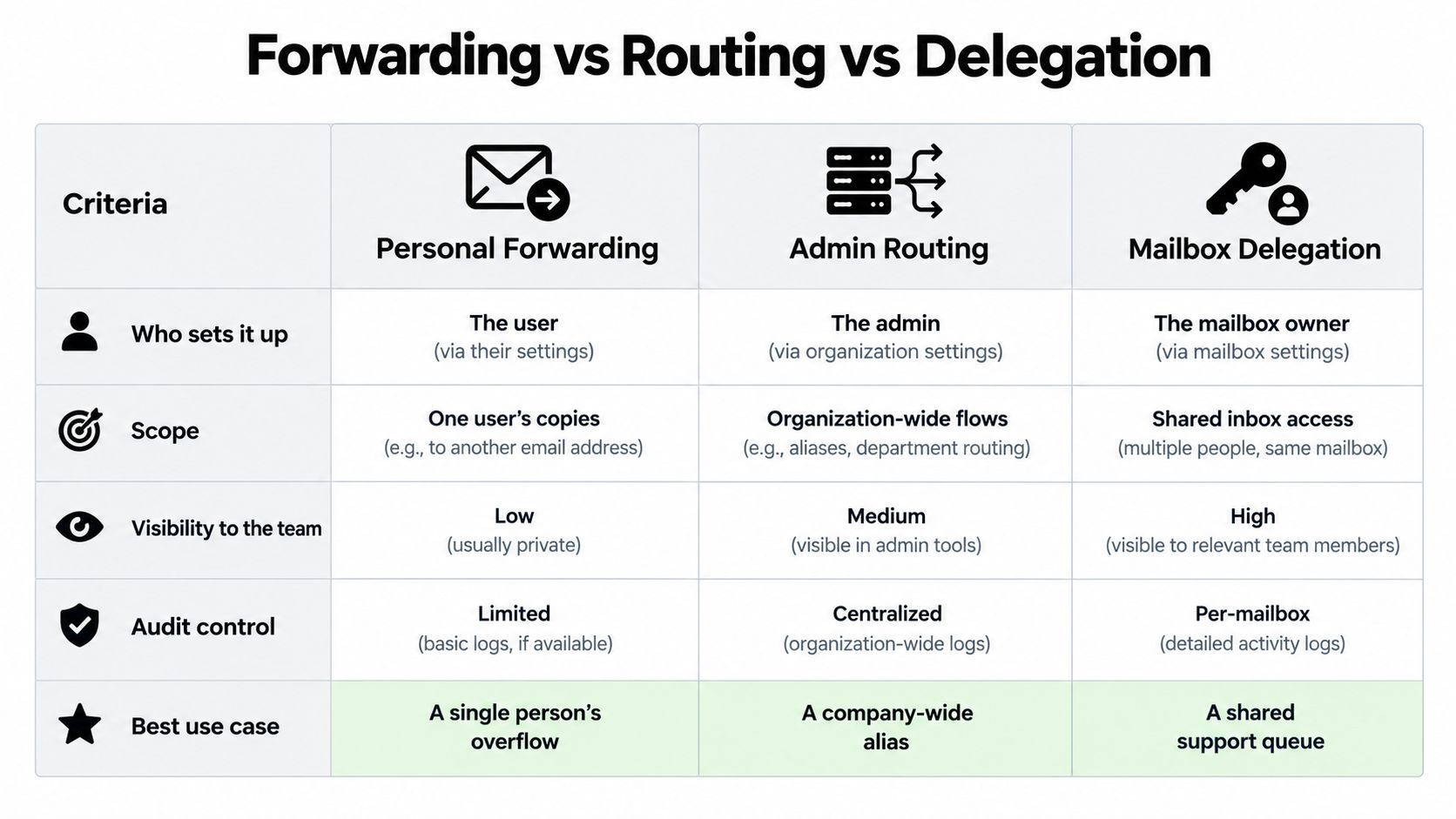
A customer-support address illustrates the difference better than a menu path. If a sales employee forwards messages to a colleague, the colleague receives a copy. If an administrator routes the address to a support queue, the organization controls the flow centrally. If the support lead delegates access to the original mailbox, agents work from the mailbox where the conversation already lives.
| Workflow | Reply identity | History and ownership | Offboarding and auditability | Best fit |
|---|---|---|---|---|
| Personal forwarding | Often depends on the destination mailbox and the agent's send settings | The original mailbox keeps the source history, while the recipient gets a copy | Rules can be overlooked when the user leaves; administrative visibility is limited | Individual overflow or a narrowly filtered handoff |
| Admin routing | Depends on the configured destination and sending identity | Central flow is easier to standardize, but copied messages can still fragment context | Administrator-controlled changes support better review and lifecycle management | Company-wide aliases, migrations, and support intake |
| Mailbox delegation | Agents work through the delegated mailbox identity or its configured permissions | Shared mailbox history remains the primary working record | Access can be removed during offboarding, with mailbox ownership kept in the business | A team that must work from one shared mailbox |
The reply identity problem
Forwarding doesn't automatically make every recipient an authorized representative of the original sender. An agent may reply from a personal address, expose the wrong address in the thread, or create a second conversation that the customer can't associate with the support team. Delegation can reduce that confusion when agents need to work from the same mailbox identity, although administrators still need to configure permissions and sending behavior correctly.
Forwarding also commonly creates a second copy rather than moving the original message. A helpdesk or support workspace may therefore ingest the same conversation more than once if both the original mailbox and forwarded destination are connected. Duplicate tickets, split attachments, and separate replies follow when the intake path isn't defined in advance.
A forwarded message is a delivery event, not a complete ownership model.
For SMBs, the practical ranking is clear. Use personal forwarding for a limited individual need. Use admin routing when the organization owns the pattern. Use delegation when several agents need one mailbox history and a consistent identity. None of these choices alone creates assignment, escalation, or quality control. Those responsibilities still need a shared operating process.
Security and Compliance Risks of External Forwarding
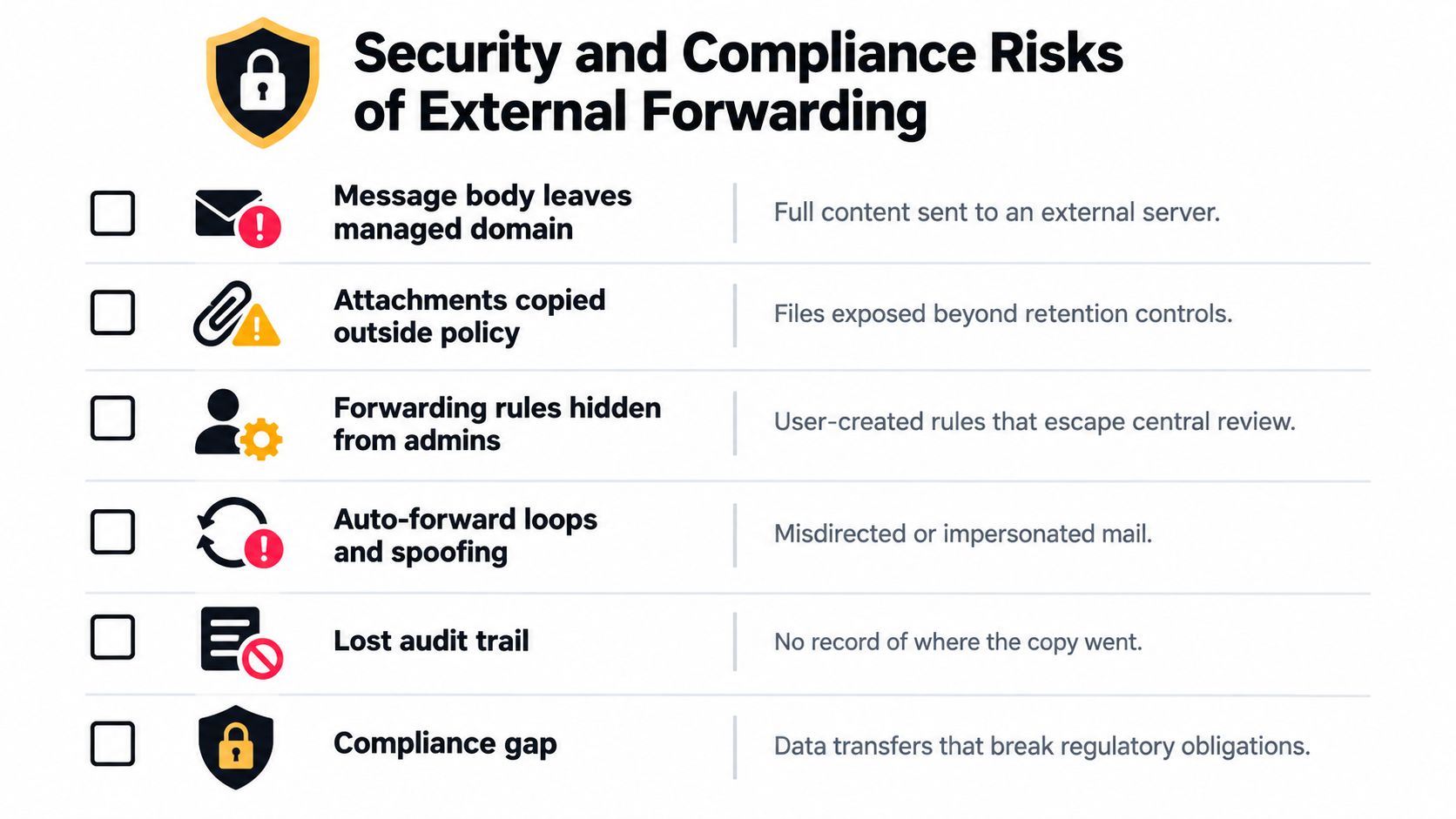
External forwarding should be treated as a controlled data transfer, not a harmless convenience. A forwarded message can carry the full body, customer details, attachments, quoted thread, and operational context to a server outside the organization's managed Workspace environment. Once that copy leaves, retention, access review, investigation, and deletion may follow a different policy.
Google's administrator documentation says automatic forwarding can be enabled or disabled for the organization and overridden by organizational unit. It also states that user-level automatic forwarding requires both sender and recipient to have a Google Workspace license because messages pass through the Gmail account. Those controls provide a policy foundation, but they don't answer whether a particular external destination is appropriate for customer data.
Use an allowlist and exception process
A sensible SMB policy starts with external forwarding restricted by default. Approved destinations can be placed on an allowlist, while exceptions require an administrator's review and a documented business reason.
The review should ask:
- Data classification: Could the message contain customer identity, payment, health, legal, or confidential business information?
- Destination control: Does the external system have appropriate access, retention, and account-offboarding controls?
- Thread behavior: Will replies return to the managed support identity, or will an employee answer from an uncontrolled address?
- Attachment handling: Will files be copied into another system where access and deletion are harder to verify?
- Investigation needs: Could the original and forwarded copies diverge during a complaint, incident, or legal review?
Gmail's historical development also matters. Gmail launched publicly on April 1, 2004, with 1 gigabyte of storage per user, which Google described as nearly 100 times the storage available from competing services at that time, as documented in Gmail's product history. The service later expanded storage and receiving capabilities, so a forwarded thread may contain a substantial archive and attachments rather than a short text note.
That makes a forwarding rule a broader exposure than many users realize. Internal forwarding can still create additional copies and complicate predictable retention paths, while external forwarding adds a separate trust boundary. Teams reviewing policy alongside GDPR compliance guidance should document approved destinations, exceptions, and the process for disabling rules during offboarding.
Security recommendation: Keep customer intake inside a managed, shared workflow whenever possible. Convenience shouldn't decide where the business record lives.
Troubleshooting the Most Common Forwarding Problems
A forwarding setup usually fails for boring reasons, not mysterious ones. In SMB environments, the trouble usually comes from one of four places: address verification, admin policy, filter logic, or conflicting routing. Check them in that order. It saves time and avoids changing the wrong setting.
The destination never receives verification
Start with the destination mailbox, not Gmail. Confirm the address is correct, then check spam, quarantine, and any inbound rules that could catch the verification message before the recipient sees it. If the destination is external, the recipient has to confirm ownership before Gmail can forward anything there.
If the message still does not appear, delete the pending forwarding address and add it again. Reusing a half-finished setup causes a lot of wasted testing.
Forwarding is enabled, but no message arrives
This is usually a filter problem. Review every condition on the rule: sender, recipient, subject, keywords, attachment requirement, and size. Then confirm the action is Forward it to the verified destination you intend to use.
Test with a message that clearly matches the rule. If nothing arrives, check whether an admin-level restriction is overriding the user setting. SMB teams often get tripped up here. Personal forwarding, admin routing, and delegation are different workflows with different ownership and audit behavior. If you use personal forwarding when the real need is shared handling, troubleshooting never stays simple for long.
The sender or recipient receives an authorization error
Treat this as a policy issue first. A user can complete the setup steps in Gmail and still be blocked by organization controls. Review the admin allow and block settings before you touch the user mailbox again.
For user-level automatic forwarding, also confirm the accounts involved meet Google's licensing requirements described earlier. If the policy and license are valid, retry with one clean test message instead of a whole batch.
Messages warn about a loop or bounce
Assume you have overlapping paths. Common causes are a rule that sends mail back to the original inbox, a Google Group that includes the forwarding destination, or two routing rules that hand messages back and forth.
Cut it down to one path and test again. Redirects do not give you a separate escape route. Google counts them as forwarding activity, so a messy setup can still trigger the same operational problems.
High-volume forwarding stops during a burst
Burst failures usually point to volume controls, a loop, or automation gone wrong. Do not try to spread traffic across multiple forwarding methods to hide the pattern. Fix the cause. Remove runaway rules, inspect automated workflows, and check for compromised accounts generating abnormal traffic.
If you manage forwarding programmatically, inspect the Gmail API status for the forwarding address as well. An address can still show as pending verification even when a user insists it was already confirmed.
Forwarding Into a Shared Support Workspace
Individual forwarding from every employee inbox usually creates the wrong support architecture. Ownership becomes unclear, replies leave from inconsistent addresses, and each agent sees only the copy that reached them. The business may have customer messages in several personal mailboxes without one reliable history for agents, reporting, or AI assistance.
A shared support workspace gives the organization one intake path. The team can route the support mailbox into a controlled destination, preserve the conversation context, assign the next action, and let agents respond through the support identity. That approach is especially useful because Gmail grew from a search-oriented mailbox into a broader collaboration platform, and customer threads can contain substantial archives, attachments, and quoted history.
A same-day implementation checklist should include:
- Choose the owner: Decide whether the mailbox belongs to one person, a department, or the whole support team.
- Select the mechanism: Use filtered personal forwarding for individual overflow, admin routing for shared intake, and delegation for shared mailbox access.
- Set the reply identity: Test exactly which address the customer sees.
- Protect the boundary: Restrict external destinations and document approved exceptions.
- Test the lifecycle: Verify attachments, replies, filters, vacation responders, duplicate ingestion, and employee offboarding.
- Record the rule: Store the destination, scope, owner, and removal process in the team's administration documentation.
SignalZen can route support email into a shared workspace where agents use preserved conversation context, AI-drafted replies, and human handoff through collaboration tools. Teams should choose that type of centralized workflow when customer ownership matters more than the convenience of a personal forwarding toggle.
SignalZen helps SMBs bring email and chat conversations into one support workflow, with AI assistance, shared context, and human handoff through Slack, Microsoft Teams, or Google Chat. Review the forwarding setup and connect the support process through SignalZen so customer conversations have a clear owner from intake to resolution.


Better support without a bigger support team.
Start with AI. Add your team when the conversation needs a person.