
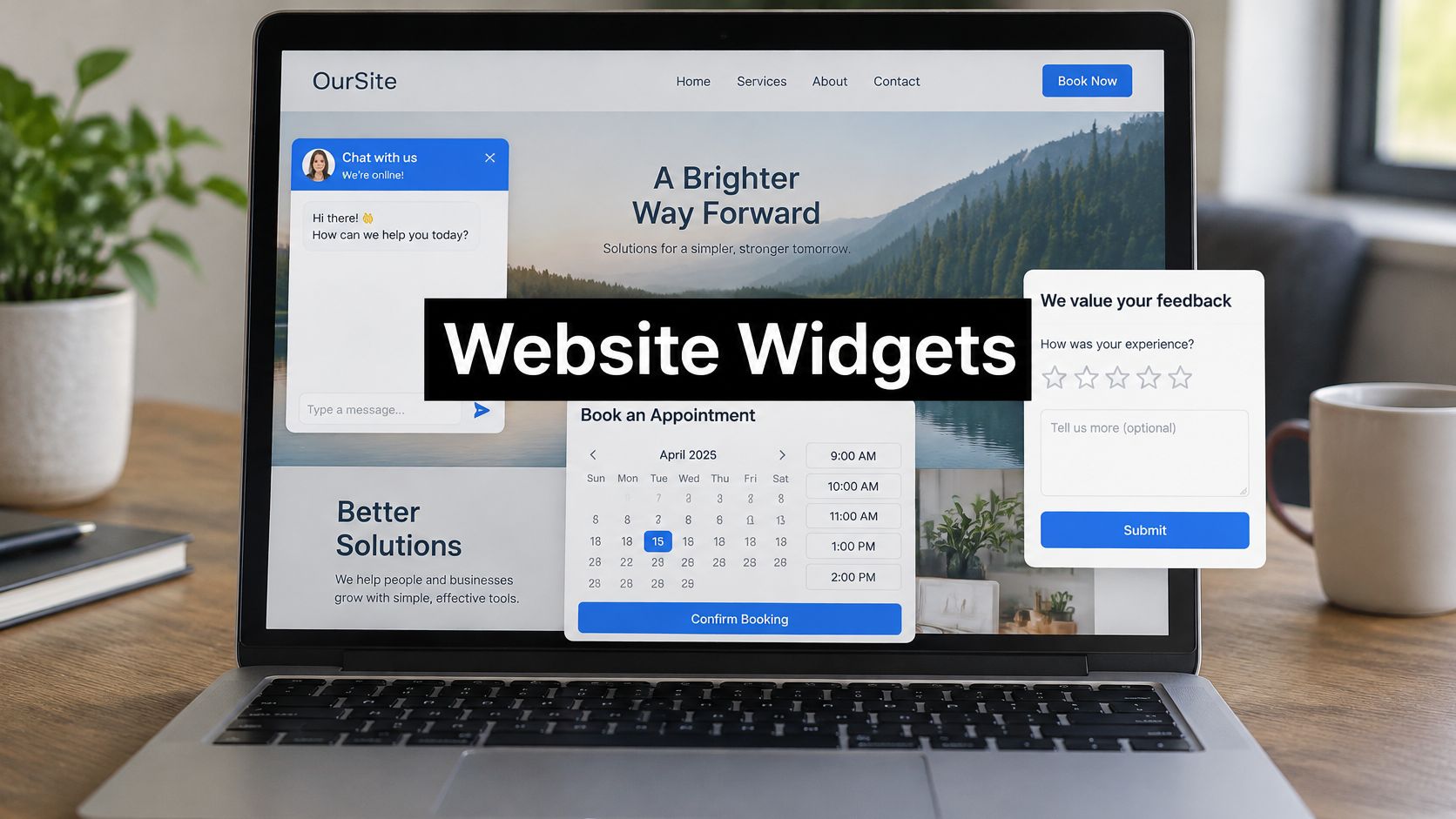
A website widget is a self-contained interface embedded in a web page that shows information, collects input or triggers an action without the visitor leaving the page. If that's the whole story, why do so many site owners add one and then wonder why pages feel slower, visitors ignore it, or accessibility problems remain? The gap comes from judging a widget by its appearance instead of by the job it does for the visitor and the cost it adds to the host page.
Table of Contents
- What a Website Widget Actually Is
- Common Widget Types and What They Do
- How a Widget Works Behind the Scenes
- How to Add a Widget to Your Site
- Why a Widget Does Not Make Your Site Accessible
- Choose and Check a Widget Before You Launch
What a Website Widget Actually Is
A website widget is a self-contained interface or feature embedded inside a larger web page that displays information, collects input or enables an action without the visitor leaving the page. Readers already know several examples. There's the chat launcher in the corner, the appointment calendar on a services page, the product calculator beside pricing, and the weather panel, map or feedback form tucked into an article.
Say a dental practice adds a small booking box to its homepage. A visitor picks Tuesday at 10 a.m., confirms a phone number and returns to reading about treatments. The homepage didn't become a booking system. It gained one focused tool that handles one task while the surrounding text, photos and navigation stay unchanged.
One Job Inside a Bigger Page
The coffee-machine analogy helps. A widget is like a coffee machine built into an office kitchen counter. The kitchen still holds cupboards, a sink and a fridge, but the machine looks after itself and does one job. Remove it and the kitchen still works, just without coffee.
That means the job defines the widget more than its look. Two round buttons in the bottom corner can look identical, yet one opens customer support and the other opens a sales discount. They're different widgets because they do different work.
The idea isn't new. The World Wide Web Consortium history of widgets documents standardisation work as early as 2006, a “Widgets 1.0” draft in April 2008, and a packaging specification reaching Recommendation status in November 2012. That packaging standard was retired in 2018, but the principle survived because modern sites are built from reusable parts.
Lift-it-out test: Could an element be lifted from one page, placed on another site, and still do its job intact? If yes, it's a widget.
Common Widget Types and What They Do
| Widget type | What the visitor does | Typical example | Where it usually sits |
|---|---|---|---|
| Chat launcher | Asks a question and gets a reply | Support chat on help pages | Bottom-right corner on every page |
| Feedback form | Rates a page or reports a problem | Was this article helpful? | After an article or in the footer |
| Booking calendar | Picks a time slot | Book a consultation | Services or contact page |
| Product calculator | Enters values and sees a result | Shipping or loan cost estimator | Product or pricing page |
| Weather or news panel | Reads live information | Local weather on a travel site | Header or sidebar |
| Map finder | Searches for a location | Find a branch near you | Contact or store locator page |
| Newsletter sign-up | Enters an email address | Subscribe for updates | Footer or pop-up |
Grouped by Visitor Job
The table sorts neatly into three jobs. Some widgets help a visitor talk, such as chat launchers and help panels. Others collect, such as feedback forms, newsletter sign-ups and contact forms. The rest help a visitor act, such as booking calendars, product calculators and map finders.
Placement matters more than visibility. In 2024, live-chat users represented 0.84% of visitors across nearly 5 billion website visits analyzed by Smartsupp, as reported by Popupsmart's chatbot statistics roundup. That low share doesn't make chat useless. It means a generic bubble on every page, asking nothing specific, gives most visitors no reason to click.
Contrast two uses of the same chat widget. On a blog article, a prompt saying “Need help?” competes with the article itself. On a pricing page, a prompt saying “Not sure which plan fits a team of five?” matches the exact doubt a visitor is stuck on. Readers weighing that second use can compare it with how a customer support chatbot handles questions before a human joins.
Match the widget to the question a visitor is most likely stuck on at that page, not to every page at once.
One site can combine two or three types, for example chat on pricing, a calculator on product pages and feedback after articles. Each still needs one clear job. A widget that tries to sell, support and survey at once usually does none of them well.
How a Widget Works Behind the Scenes
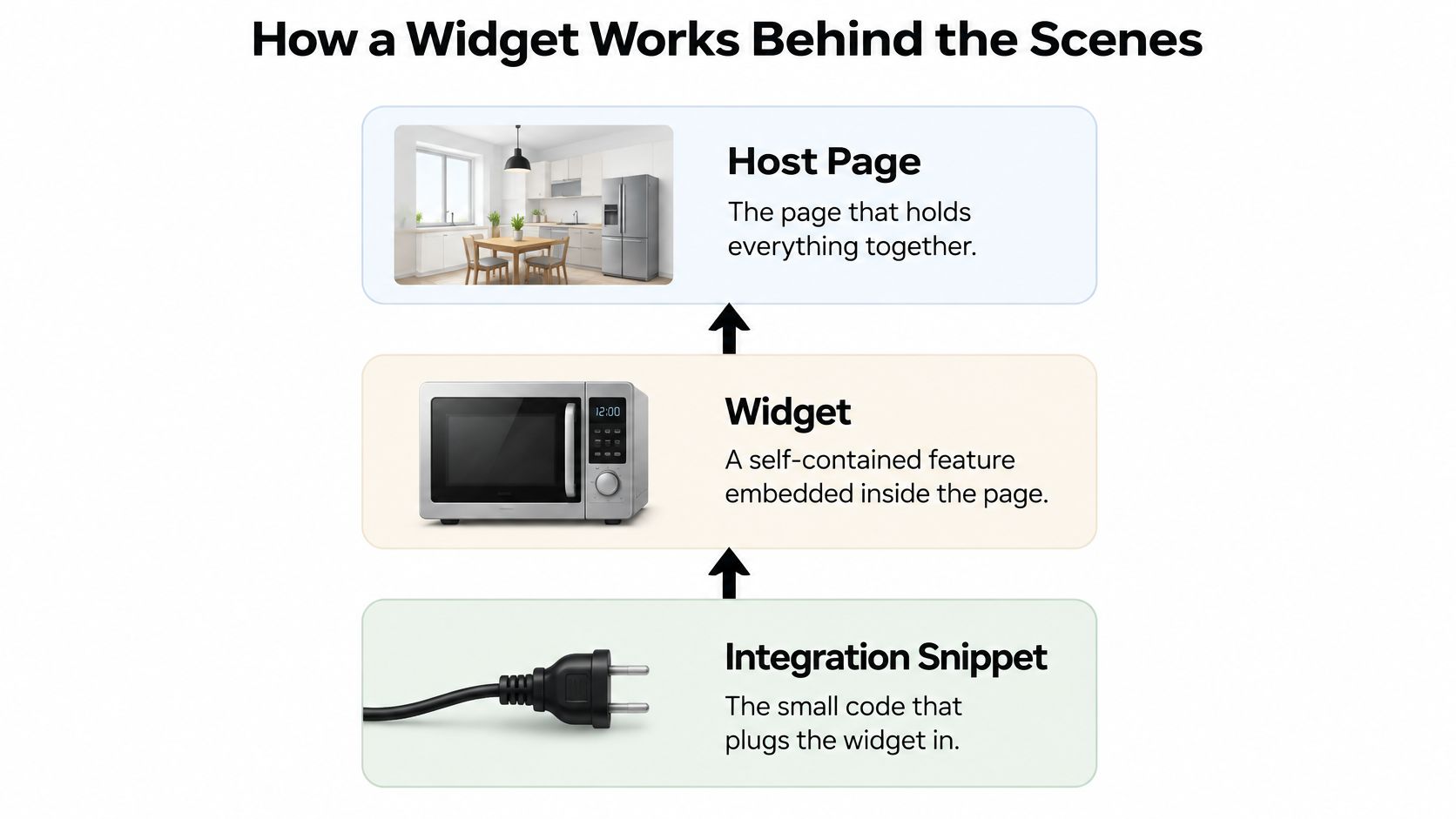
Start with the sealed-appliance picture. The host page is the kitchen, the widget is the appliance, and the integration snippet is the power cable that plugs it in. The visitor sees only the appliance door, a small launcher or panel. The wiring stays out of sight.
Three Layers Working Together
- Host page: The page's own HTML, CSS and JavaScript render articles, products and navigation.
- Widget code: Its own markup, styles, event handling and conversation state decide what opens, closes and gets remembered.
- Backend services: Servers route chats, store submitted forms or search a knowledge base, then send results back.
A typical load follows a short sequence. The page requests a script, the script registers the widget, and a small launcher appears. When a visitor clicks, a panel opens and messages travel over the network to the service, which replies inside the same panel. The visitor never reloads the page, which is why the experience feels instant.
Modern widgets often use Web Components. According to MDN's Web Components documentation, custom elements define reusable behaviour, and the browser registers the component through CustomElementRegistry.define(), after which the custom HTML element can sit in markup like any native element. Shadow DOM then encapsulates the widget's markup and styling so they're less likely to conflict with the host site's CSS or JavaScript.
What Site Owners Actually Configure
A good widget exposes a narrow set of options, such as language, theme, a visitor identity token and knowledge-base context. The site owner sets those dials without learning the internals, much like setting a temperature without rewiring the oven. The widget source code documentation shows the kind of snippet and settings involved.
A basic installation looks like this, placed in the page template:
<script src='YOUR_WIDGET_SCRIPT_URL' defer></script>
The placeholder gets replaced with the script address from the provider's dashboard, then the launcher should appear after the page loads. Encapsulation doesn't remove the remaining duties, though. The widget still needs lifecycle handling, responsive layout, secure cross-origin requests, consent-aware tracking and a fallback when JavaScript or the backend is unavailable. Without that fallback, a visitor may see a button that does nothing, which is worse than no button at all.
How to Add a Widget to Your Site
Installation is a sequence, not a single paste. Each step prevents a specific problem later.
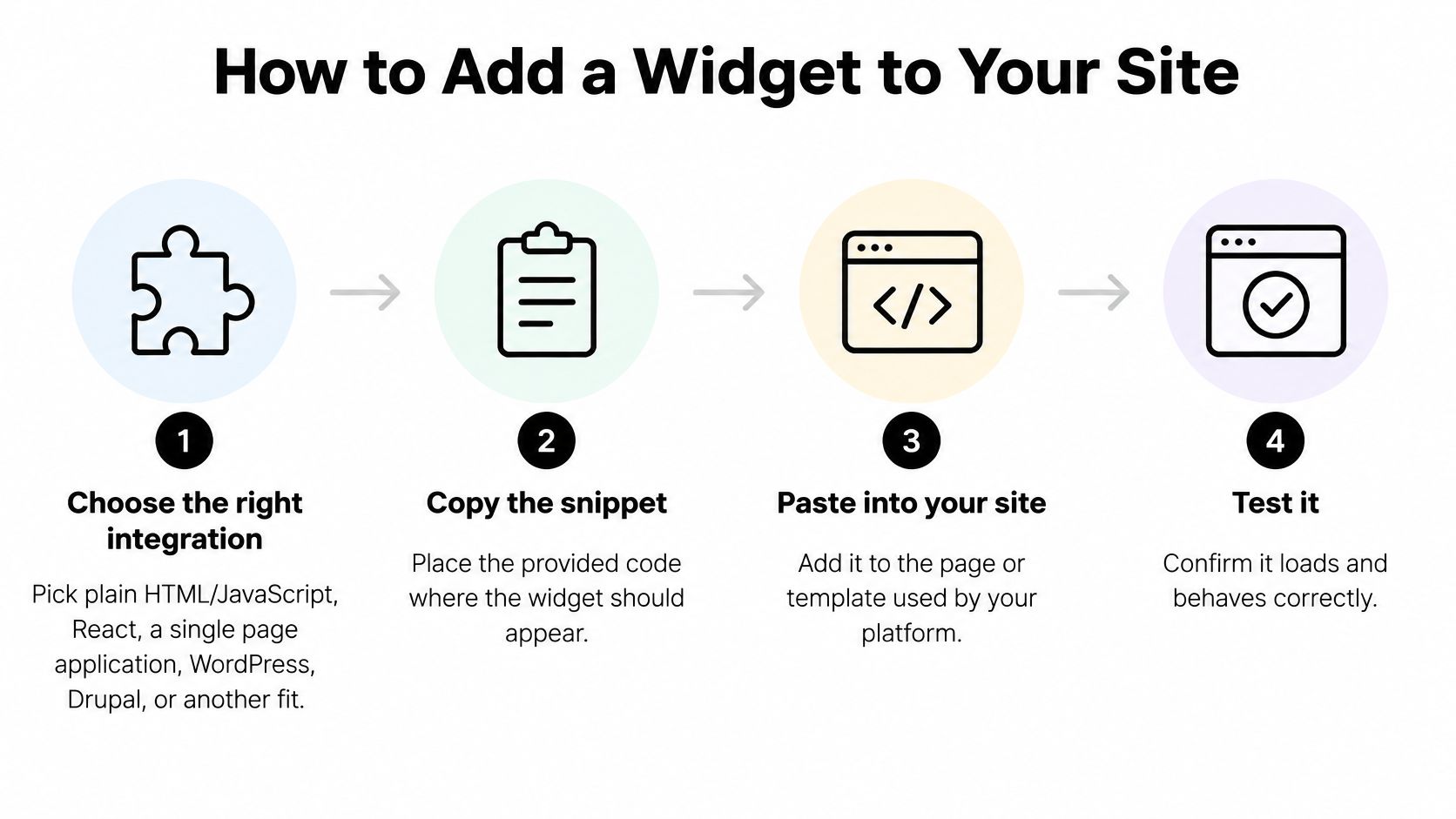
- Choose the integration that matches the site. Plain HTML/JavaScript, React, a single page application, WordPress, Drupal or Joomla each place code differently, so the wrong guide wastes an afternoon. The HTML and JavaScript integration guide covers the plainest case.
- Create the widget in the provider's dashboard. With SignalZen, setup involves creating a workspace, getting a public token and putting the widget live in a few minutes. Copy the embed code exactly as given, since a missing character breaks it without notice.
- Place the snippet in the page template. A template placement loads the widget on every page. A narrower placement loads it only where it's wanted, which keeps unrelated pages lighter.
- Load the script with async or defer. That ordering lets the article or product content render before the widget runs, so visitors aren't staring at a blank page waiting for a chat button.
- Set the visible options. Launcher text, colours, suggested questions and an offline contact form for after-hours visits shape whether anyone uses it. A suggested question like “Where's my order?” earns more clicks than “Chat with us.”
- Send visitor context in a single page application. The current page or account details should go through the provider's documented method each time the route changes, because the page doesn't reload to refresh them. Without this step, support staff see a message with no idea which screen it came from.
- Test before launch. Open the site on a phone, tab through the page with a keyboard, send a test message and confirm it reaches the team. Testing catches the launcher covering the checkout button, a common mobile failure.
Two Placements That Work
Say a retailer adds chat only to product and checkout pages, where sizing and delivery questions block purchases. Success looks like this: the panel opens without delay, the test message arrives, and the launcher doesn't cover the buy button.
Say a SaaS app shows the widget only to logged-in users. Support then sees account context with each message and skips asking which workspace the visitor means. Success looks like a test conversation arriving with the account name already attached.
Launch signal: The widget opens fast, the test message reaches the team, and nothing important hides underneath the launcher.
Why a Widget Does Not Make Your Site Accessible
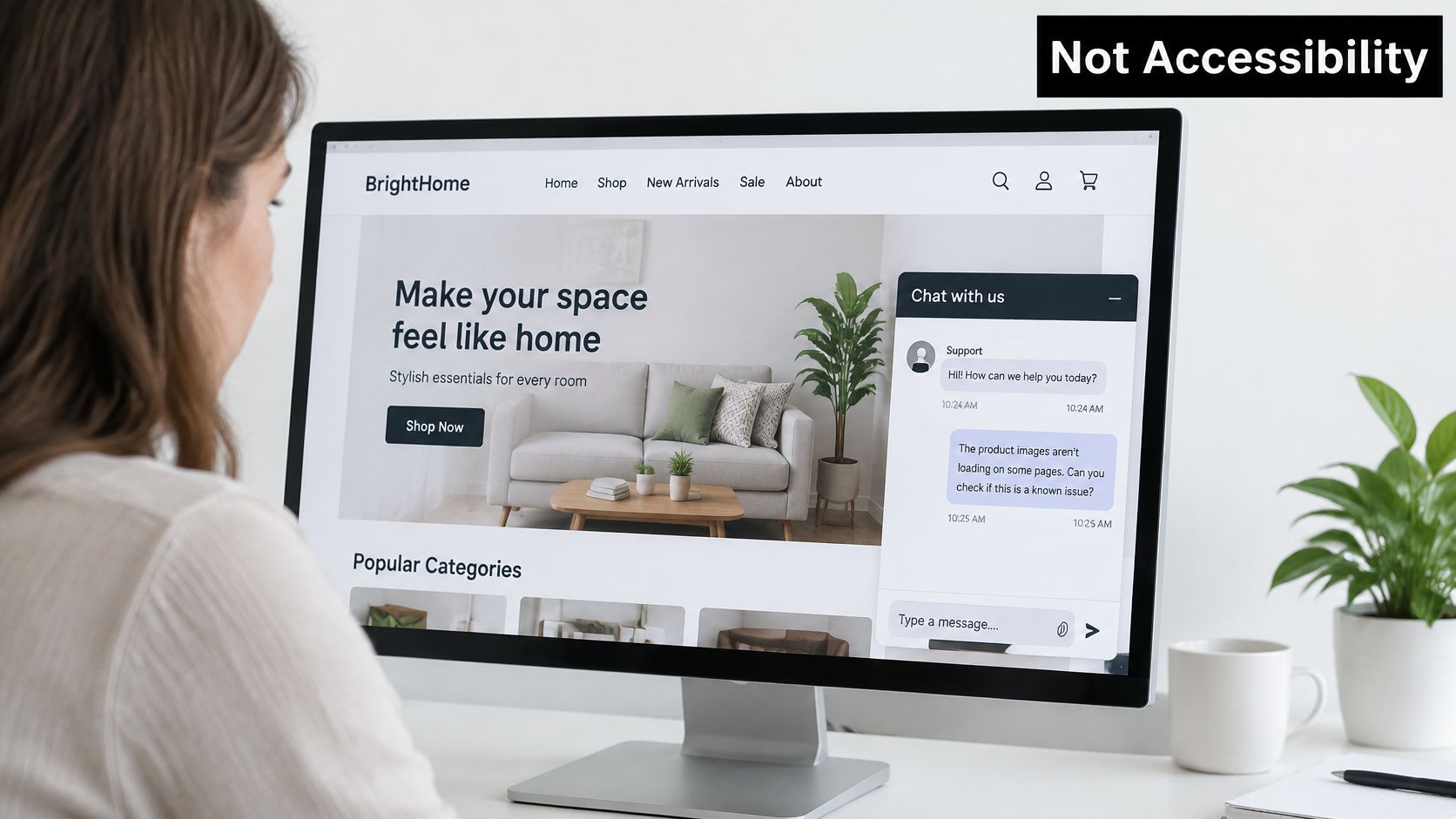
Here's a belief worth testing: adding a widget makes a site accessible or legally compliant. It sounds plausible because some products are sold as accessibility overlays that promise instant fixes. A support widget and an accessibility overlay are different things, and neither repairs the page underneath.
What a Widget Cannot Repair
A chat panel can't add missing alt text to product photos. It can't write proper labels for checkout form fields, strengthen weak colour contrast, fix a broken heading structure or free a visitor from a keyboard trap elsewhere on the page. Those problems live in the site's own HTML and design.
The legal record backs that caution. The UsableNet 2025 year-end digital accessibility lawsuit report recorded more than 5,000 ADA-related digital accessibility lawsuits across federal and state courts in 2025. In October 2025, 42% of litigated websites reportedly used a third-party accessibility overlay. The same source notes the FTC finalised a $1 million order in April 2025 against accessiBe over claims that its automated widget could make websites WCAG-compliant.
The Practical Answer
A support widget still has its own accessibility duties. It should be keyboard-operable, properly labelled and compatible with screen readers, and it should be tested as part of the site. Each feature adds a requirement: suggested prompts need clear labels, file sharing needs announced errors, offline forms need readable instructions, and human escalation needs a reachable control. Owners wanting the wider picture can read about website accessibility for Australian businesses as background on fixing pages at the source.
A widget sits on top of a page. It doesn't rebuild the page.
The takeaway is plain. Audit the page underneath the widget first, fix what's broken there, and then check that the widget itself doesn't add new barriers.
Choose and Check a Widget Before You Launch
The decision is smaller than most buyers make it. Pick one widget type for one page, prove it earns its place, then expand. Six checks cover the risks that matter.
- Visitor fit: Does it answer this page's likely question? A booking calendar suits a services page, and a chat launcher suits a pricing or help page.
- Page speed: Does it load without blocking? HTTP Archive's Web Almanac on third parties reports a median blocking time of 1.4 seconds for the ten most popular third parties, so non-critical code should load with async or defer after main content is usable.
- Keyboard and screen-reader use: Tab order should be logical, focus visible and Escape should close the panel. Controls need names and correct expanded or collapsed states for assistive technology.
- Data storage: Where do messages and uploaded files live, and are they encrypted? SignalZen states that website visitor messages, including files sent through the Live Chat widget, are stored encrypted in SignalZen databases. Every vendor should answer that question in writing.
- Consent: When a visitor declines consent, the widget should respect the choice and keep working without tracking. A widget that stops entirely punishes the visitor for a legitimate decision.
- Platform path: Confirm an official integration exists before starting. SignalZen's Live Chat widget can be installed on HTML/JavaScript, React, single page applications, WordPress, Drupal and Joomla.
| Check | Passing result | Question to ask the vendor |
|---|---|---|
| Visitor fit | Widget matches the page's main question | Which pages suit this widget type? |
| Page speed | Script loads asynchronously or with defer | Does the script block rendering? |
| Keyboard use | Focus visible, Escape closes, no keyboard trap | Is the widget tested with keyboard only? |
| Screen readers | Controls have names and expanded state | Are labels and states exposed to assistive tech? |
| Data storage | Messages and files stored encrypted | Where and how are visitor messages stored? |
| Consent | Widget respects a declined consent choice | What happens when a visitor declines? |
One action fits this week. Install the widget on one high-traffic page, test it on mobile and with a keyboard, and measure page speed before and after. Expand only if the page stays fast and the conversations prove useful.
Ready to put a support widget to its proper job? SignalZen offers a customisable live chat widget with AI answers from a business's own content, suggested questions and human handoff from Slack, Microsoft Teams or Google Chat. Visit SignalZen to add it to one page, run the checks above, and expand only when it earns its place.

Better support without a bigger support team.
Start with AI. Add your team when the conversation needs a person.